Monitor Ghosting and Motion Blur: Causes, Fixes, and How to Test Your Panel
You're tracking a fast-moving target, or just dragging a window across the desktop, and a faded, smeared trail drags along behind every edge. That's ghosting — and while it's tempting to write it off as 'the panel,' it's very often one overdrive setting in your monitor's menu away from fixed. This guide explains what's physically happening on the panel, walks through tuning overdrive the right way (including the inverse-ghosting trap most buying guides never mention), and shows you how to prove your fix actually worked instead of just guessing.
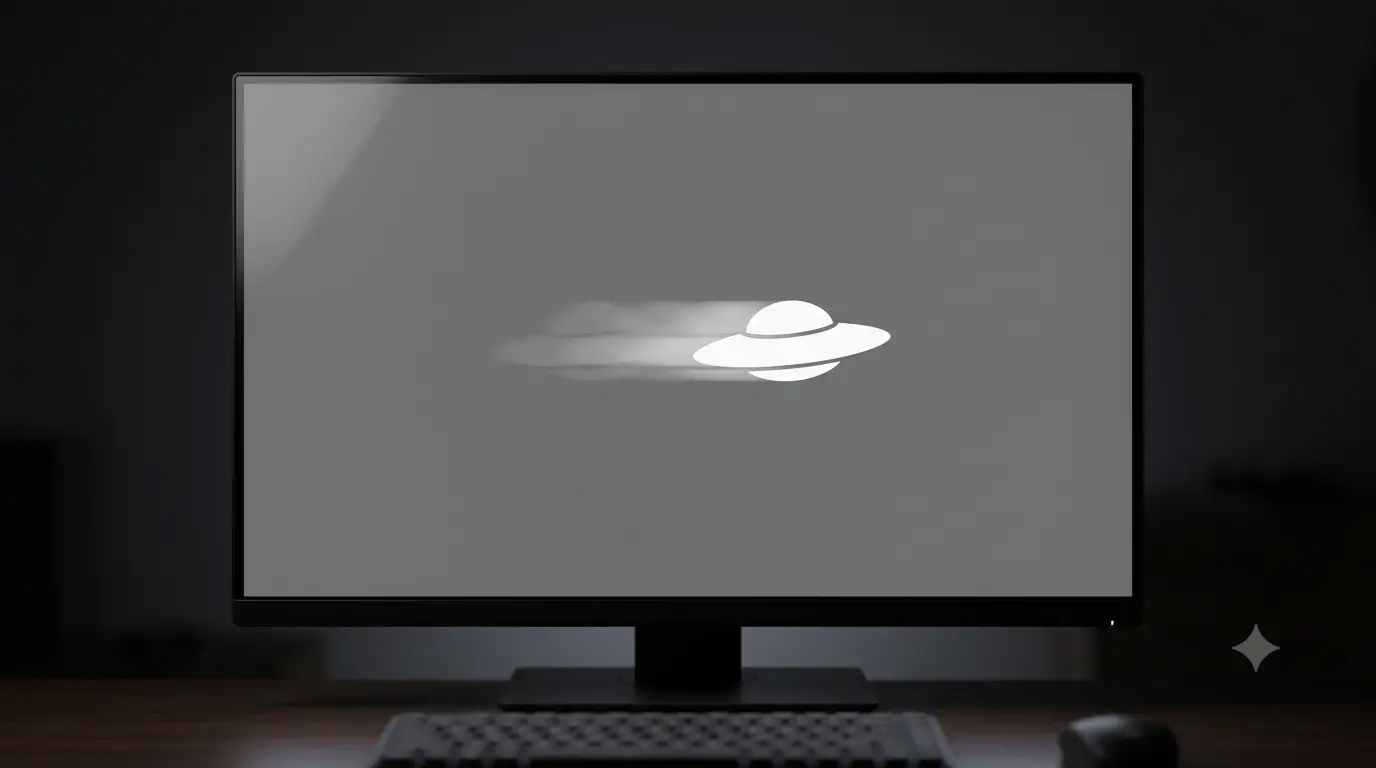
What ghosting actually is
An LCD pixel doesn't change colour instantly. It's a liquid crystal cell that has to physically twist in response to a change in voltage, and that twist takes a measurable amount of time — usually specified as grey-to-grey (GtG) response time, in milliseconds. If a pixel hasn't finished settling into its new colour before the display moves on to the next frame, what you see is a blend of the old frame and the new one smeared across the moving edge. That smear is ghosting.
The faster your refresh rate, the less time each pixel gets to settle. At 60Hz a new frame arrives roughly every 16.7ms; at 144Hz it's every 6.9ms. A panel that looks fine at 60Hz can start ghosting once you push it to 144Hz or 240Hz, simply because the pixels no longer have enough time between frames to finish transitioning — which is exactly why monitors add overdrive to compensate.
The real causes, ranked by how often they're the culprit
- Panel response time. VA panels are the slowest, especially on dark-to-dark transitions (the classic "black smearing" complaint); IPS is faster and more consistent; TN and OLED are fastest. Some ghosting is simply baked into the panel technology.
- Overdrive set too low, or off. The single most fixable cause — see below.
- Running below your panel's rated refresh rate. A 144Hz monitor stuck at 60Hz (often silently — see our refresh rate guide) shows more judder and perceived blur, which gets misread as ghosting.
- A marginal cable or connection — rare, and usually causes flickering or dropped signal rather than a clean trailing smear, but worth ruling out if the symptom looks unusual.
How to verify you actually have ghosting
You can't judge ghosting on a static desktop — it's a motion artefact, and specifically apursuit artefact: it only shows up while your eyes are tracking a moving object, because that's when your visual system compares what the pixel showed a moment ago against what it's showing now. Staring at a fixed point on screen while something moves past it hides the effect almost entirely.
Tuning overdrive — and the inverse-ghosting trap most guides skip
Overdrive (sometimes called Response Time, OD, TraceFree, Rampage Response, or AMA depending on the brand) works by briefly overshooting the target voltage during a pixel transition, forcing the liquid crystal to move faster than it naturally would. Set it too low, and pixels lag behind, producing the classic faded trail. So the obvious move is to crank it up — and that's where most advice stops, which is the problem.
Push overdrive too far and the pixel overshoots past its target colour before settling back, producing a bright, oddly-coloured halo or "corona" trailing the moving object — inverse ghosting. It's arguably more distracting than normal ghosting, because a bright fringe against a dark background jumps out far more than a subtle fade. Plenty of monitors ship with overdrive maxed out by default specifically because it looks impressive in a spec sheet, and reviewers who only check for "no ghosting" without also checking for overshoot will wave it through.
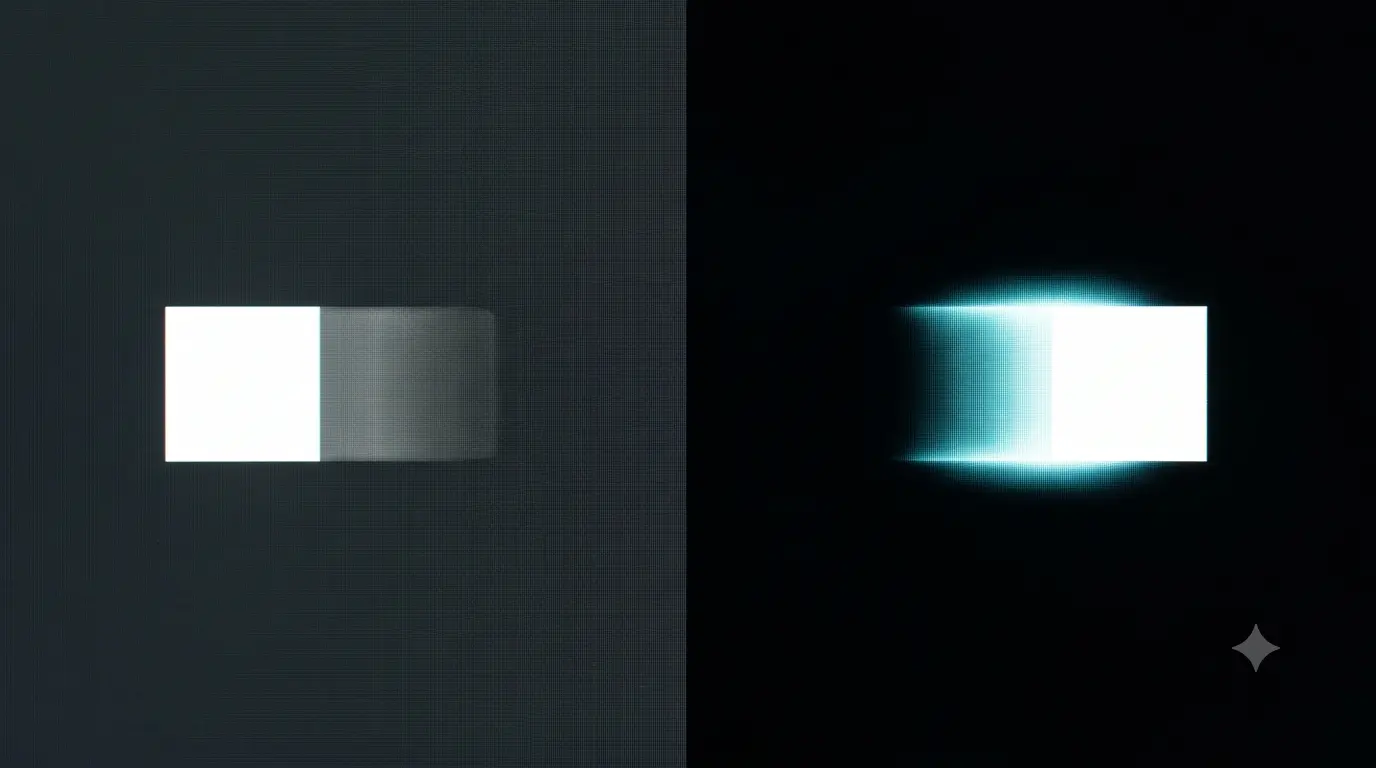
The rule of thumb: the strongest overdrive setting is almost never the right one. The middle setting — usually labelled "Normal," "Medium," or the second of three/four levels — is the correct choice on most monitors. Weakest gives you ghosting; strongest gives you overshoot; the one in between is where the pixel finishes its transition right as the next frame arrives, with neither trailing nor overshoot.
Step by step: find your panel's sweet spot
- Open your monitor's OSD and find the overdrive setting — check the "Gaming" or "Picture" menu, and note which level is currently active.
- Set it to the lowest level (or off) and run the ghosting test's "UFO on black" mode. You should see an obvious trailing smear — this is your baseline.
- Move to the middle level and re-test. The trail should shrink noticeably with no bright halo behind the object.
- Move to the strongest level and re-test, watching specifically for a bright corona or coloured fringe trailing the object — that's overshoot, and it means you've gone too far.
- Settle on the setting with the least visible trail and no halo — on most monitors that's the middle option, but confirm it by eye rather than assuming.
A few other things that make ghosting worse
- Motion interpolation / frame-insertion modes — common on TVs used as monitors, these add processing lag and their own artefacts on top of normal ghosting. Turn them off for PC use.
- Non-native resolution. Scaling adds a processing step that can blur motion further; run your panel at its native resolution.
- Dark scenes on VA panels. Even well-tuned VA monitors tend to ghost more specifically on dark-to-dark transitions — it's a known characteristic of the technology, not a fault.
The honest hardware limit
Overdrive tuning narrows the gap between what your panel's pixels can do and what your refresh rate demands of them — it doesn't rewrite the panel's chemistry. A budget VA panel with a genuinely slow dark-to-dark response will still trail more than a fast IPS panel, and a fast IPS panel will still trail more than TN or OLED, no matter how carefully you dial in the OSD. If you've found the correct overdrive level, confirmed your refresh rate is really what it claims to be, and ghosting is still bothering you in competitive games, that's a signal the panel itself is the limiting factor — not a setting you haven't found yet. In that case, the fix is a faster panel technology, not more time in the menu.