Screen Tearing Explained: What Causes It and How to Stop It for Good
A horizontal seam cuts across the screen mid-scroll or mid-firefight, with the top half of the image out of step with the bottom half. That's screen tearing, and it has a precise technical cause: your graphics card and your display are out of sync. The good news is that it's one of the most reliably fixable display problems there is — you just need to understand the trade-off between the two real fixes, and how to confirm the one you pick actually worked.
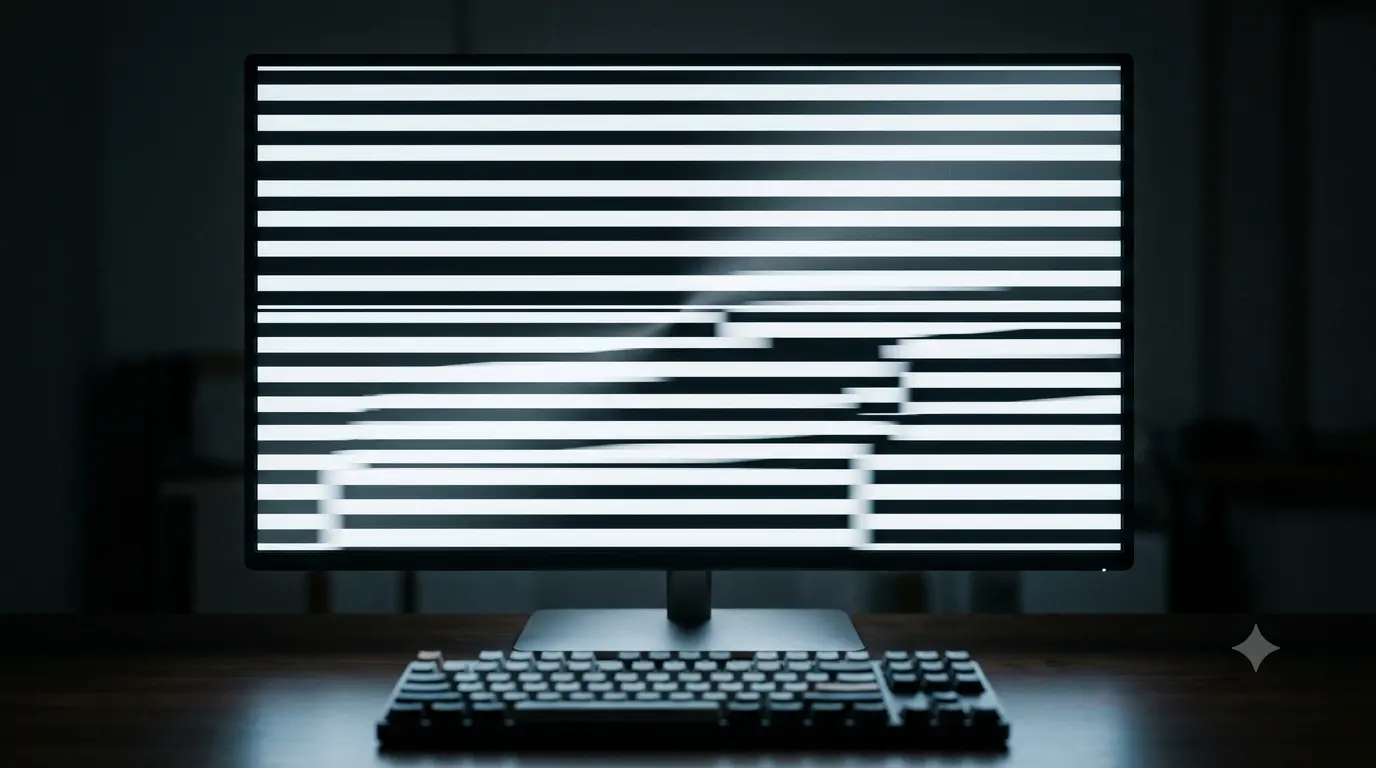
What tearing actually is
Your display redraws itself from top to bottom, over and over, at a fixed cadence set by its refresh rate — 60 times a second at 60Hz, 144 times a second at 144Hz, and so on. Your GPU, meanwhile, renders frames as fast as it can, and that rate constantly fluctuates with scene complexity. When the GPU finishes a new frame and swaps it into the display buffer while the screen is midway through drawing the previous one, the top portion of the screen keeps showing the old frame and the bottom portion switches to the new one. The result is a visible horizontal seam — and if your frame rate is running well above your refresh rate, you can get more than one seam on screen at once, each representing another frame swap that happened mid-scan.
Why it happens
At the root, it's always a synchronization mismatch between how fast frames are produced and how fast the display draws them. A few common triggers:
- Your frame rate is running higher than your refresh rate — excess frames get swapped in mid-scan.
- Your frame rate is fluctuating — even if it's usually in sync, dips and spikes knock it out of alignment repeatedly.
- VSync is off, which is the default in a lot of games and in most GPU driver profiles, because it's the lowest-latency option when tearing isn't a concern.
How to identify it (and rule out lookalikes)
Tearing is a spatial artefact — a static-looking horizontal misalignment — which distinguishes it from stutter, where the whole frame freezes or skips without any seam. A fast, uniform scrolling pattern makes the difference obvious immediately.
Fix 1: VSync — simple, but it has a cost
VSync (vertical sync) forces the GPU to hold each finished frame until the display starts its next redraw, so frames only ever swap in at the boundary between refreshes. It eliminates tearing completely and works on every display, no special hardware required. The trade-off is input lag — the GPU is now waiting on the display's timing instead of showing you a frame the instant it's ready — and if your frame rate dips below the refresh rate, traditional double-buffered VSync can force it to halve (a 60Hz display drops to a locked 30fps rather than an uneven 45fps). It's a solid default for movies, browsing, and non-competitive play; less ideal if low latency matters to you.
Fix 2 (better): variable refresh rate — FreeSync, G-SYNC, HDMI VRR
Variable refresh rate flips the relationship around: instead of capping the GPU's frame rate to match the display, it makes the display's refresh rate follow whatever frame rate the GPU is actually delivering, in real time, within a supported range (commonly something like 48–165Hz). Each frame gets shown the instant it's ready, with no seam and — critically — without the extra latency VSync can add. This is what NVIDIA callsG-SYNC, what AMD calls FreeSync, and what the HDMI Forum standardized as HDMI VRR for HDMI 2.1 devices and TVs.
The step people miss: VRR has to be turned on in two places, and it does nothing if only one is set.
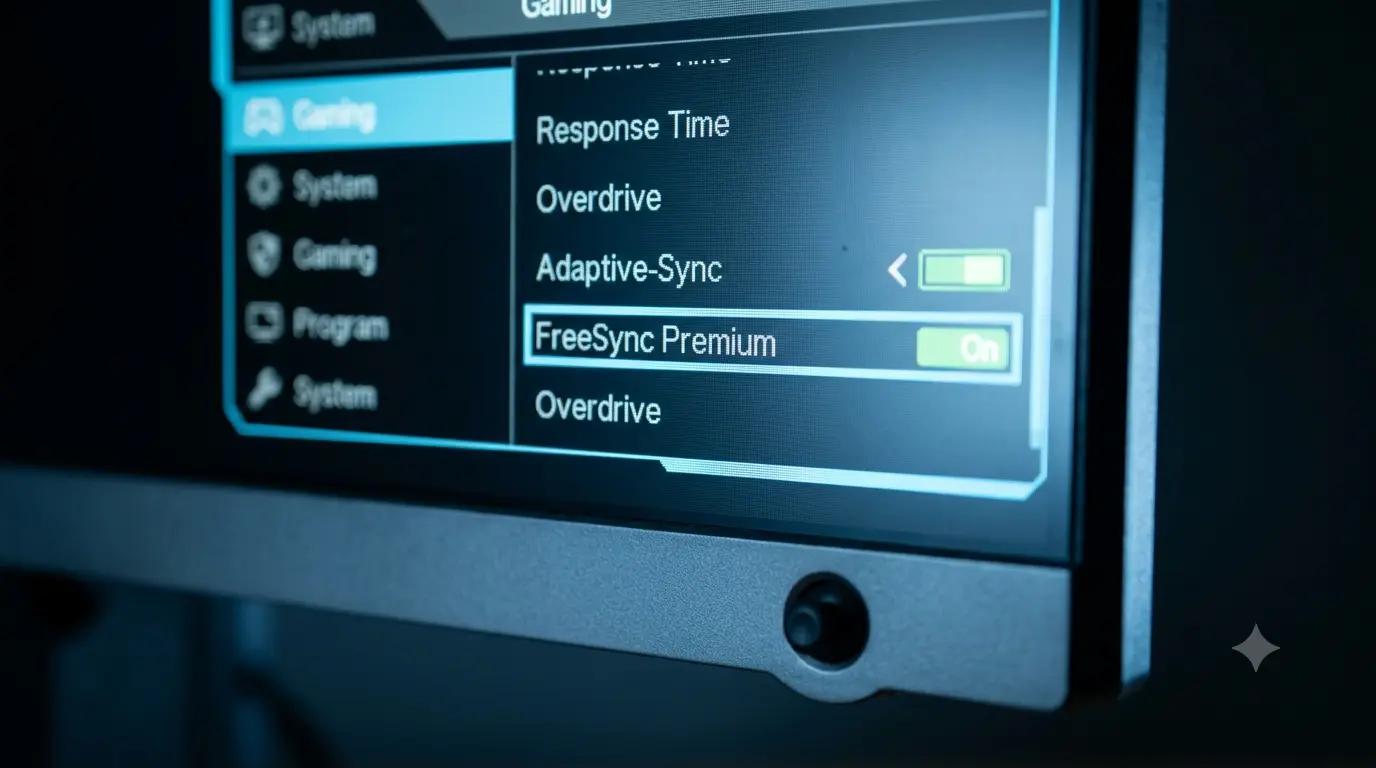
- In the monitor's own menu — look for "FreeSync," "Adaptive-Sync," or "VRR" under the gaming or general settings and set it to On.
- In the GPU driver — NVIDIA Control Panel's G-SYNC setup page, AMD Software's FreeSync toggle, or Windows' own Settings → System → Display → Graphics → "Variable refresh rate" switch for HDMI VRR setups.
The full setup checklist
- Confirm your monitor actually supports VRR — check the spec sheet for FreeSync, G-SYNC Compatible, or HDMI VRR.
- Enable it in the monitor's OSD — usually under a Gaming menu, labelled FreeSync or Adaptive-Sync.
- Enable it in the GPU driver — NVIDIA Control Panel, AMD Software, or Windows Graphics settings, as above.
- Leave VSync on alongside it in most setups (NVIDIA specifically recommends this) — it acts as a safety net for frame rates that spike above the VRR range.
- Cap your frame rate a few fps below your monitor's max refresh, using an in-game limiter or a tool like RTSS — this keeps you inside the VRR window instead of exceeding it.
- Re-test with the tearing test to confirm the seam is actually gone, not just assumed fixed.
If tearing comes back
- Wrong cable or port. VRR at high resolutions typically needs DisplayPort or HDMI 2.1 — an older HDMI 2.0 cable or port can silently cap your refresh rate and squeeze the VRR range with it.
- Borderless windowed mode. Some games bypass VSync/VRR entirely in borderless mode; try exclusive full screen instead.
- Multiple monitors. VRR support can be inconsistent across a multi-monitor setup — test with the game on your primary VRR display only.
- A silent refresh-rate cap. If none of the above explain it, verify with the refresh rate test — our stuck-at-60Hz guide covers the usual causes.
The honest limit
VRR only works inside a range — commonly something like 48–165Hz depending on the panel — and if your frame rate falls below the floor, tearing or stutter can return unless your monitor supports low framerate compensation (LFC), which duplicates frames to stay in range. Above your monitor's maximum refresh rate, you're back to tearing unless you cap frame rate as described above. And some competitive players genuinely prefer VSync and VRR both off, running uncapped frame rates for the lowest possible input lag and accepting occasional tearing as the trade-off — that's a legitimate choice, not a mistake. For everyone else, FreeSync or G-SYNC configured correctly is the fix that gets rid of tearing without giving up responsiveness.