Is Your Monitor Flickering? How to Test for PWM and Protect Your Eyes
If your eyes feel tired, dry, or strained after a couple of hours at your monitor — even though the screen looks perfectly steady to the naked eye — the culprit might be a flicker you can't consciously see. Many monitors dim their backlight by switching it on and off rapidly rather than smoothly lowering the voltage, and that flicker gets worse the lower you turn the brightness. Here are two ways to prove it's happening on your screen, and what to do about it once you know.
What PWM dimming is, and why it strains your eyes
Most LED-backlit monitors control brightness one of two ways. DC dimming lowers the actual voltage feeding the LEDs, so they get physically dimmer while staying continuously lit. Pulse-Width Modulation (PWM) keeps the LEDs running at full brightness but switches them on and off very rapidly — often somewhere between 60Hz and a few hundred Hz — and controls perceived brightness by changing the ratio of "on" time to "off" time in each cycle.
At a high enough frequency, human eyes can't consciously perceive the flicker as visual strobing. But the rapid on/off cycling still affects how our visual system processes motion and light, and a well-documented body of research links PWM flicker — even flicker that isn't consciously visible — to eye strain, headaches, and fatigue during extended use. Thesymptoms overlap heavily with general digital eye strain, which is exactly what makes PWM hard to self-diagnose without a test.
The key detail that makes this testable: PWM flicker gets worse as you lower the brightness.To dim the screen further, the monitor shortens the "on" portion of each cycle, which increases the contrast between on and off — and increases the flicker's visual and physiological effect. At or near maximum brightness, many PWM-dimmed monitors run the LEDs continuously and don't flicker at all. That's why the tests below are done at low brightness, not high.
Two ways to test for PWM at home
Set your monitor's brightness to roughly 20–30% before doing either test — this is where PWM flicker is usually at its strongest, and where a flicker-free monitor will most clearly prove it stays smooth.
Method 1: the pencil (or hand-wave) test
Hold a pencil, pen, or just your open hand a few inches in front of the screen while it displays a bright, solid pattern, and wave it quickly from side to side while watching the motion blur.
- A single smooth, continuous blur means the backlight is staying lit continuously (DC dimming, or PWM at a frequency and brightness where it isn't kicking in) — good news.
- Multiple distinct, stroboscopic "ghost" images of the pencil, like a strip of film frames, means the backlight is switching on and off fast enough to freeze each position — that's PWM flicker.
Method 2: the phone camera rolling-shutter test
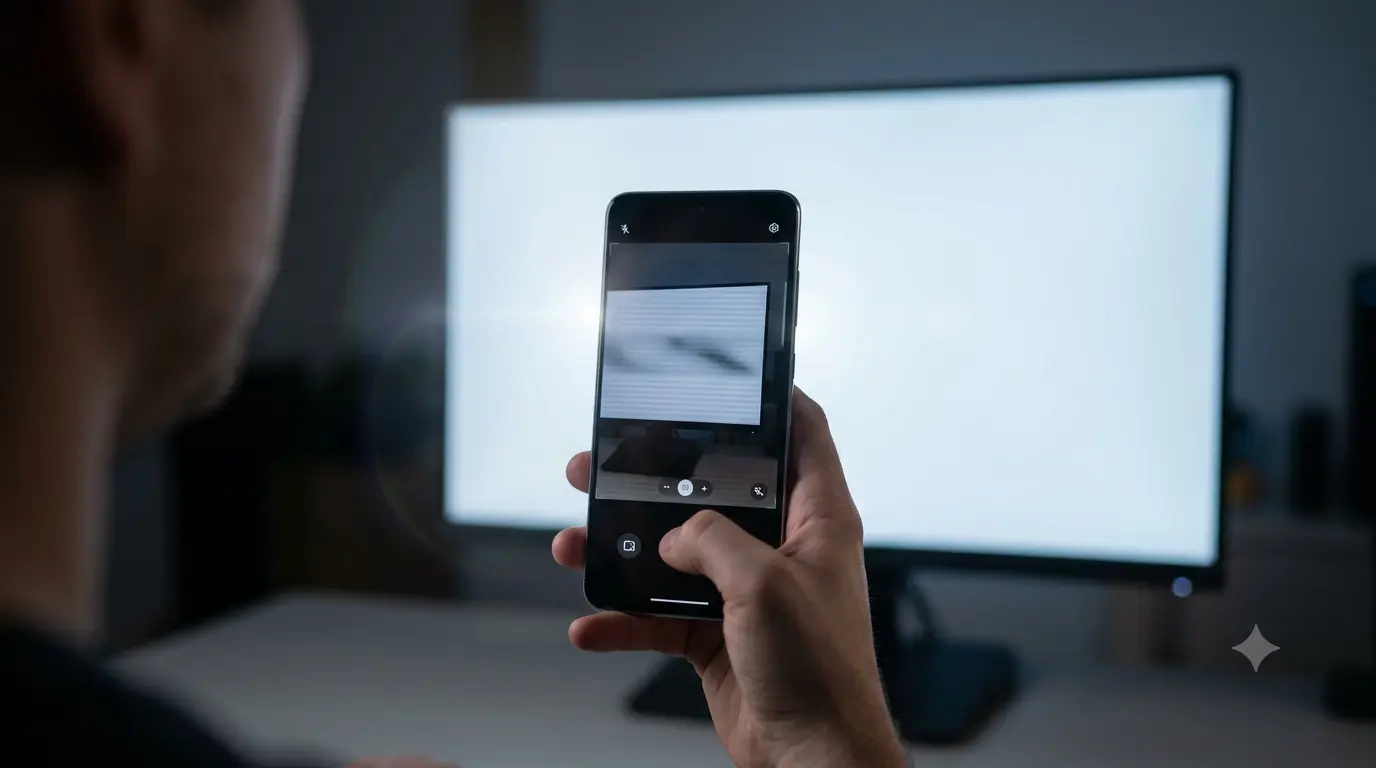
Most phone cameras (and any camera using a rolling shutter, which is nearly all of them) scan the image sensor line by line rather than capturing the whole frame at once. If the screen's brightness is cycling on and off faster than the eye can see, the camera can still catch it as the sensor reads different rows at different moments in that cycle.
- Set the monitor to 20–30% brightness with a bright pattern on screen.
- Open your phone's camera app (not slow-motion mode — regular video is fine).
- Point it at the screen and record a few seconds of video.
- Play the video back and watch for horizontal dark bands scrolling up or down across the recorded screen.
Bands that scroll through the frame confirm the backlight is pulsing. A recording that looks like a flat, steady, evenly lit screen suggests no PWM flicker at that brightness — or a frequency high enough that it doesn't beat against your camera's shutter (rare, but possible on some newer high-frequency PWM panels).
Step-by-step: how to fix or work around PWM flicker
- Raise the brightness and dim the room instead. Since PWM duty cycle widens (and flicker lessens) at higher brightness, run the monitor brighter than you'd like and compensate with dimmer room lighting or bias lighting behind the screen, rather than fighting eye strain at a low backlight setting.
- Look for a "Flicker-Free," "Low Blue Light," or "Comfort" mode in the OSD menu. Many monitors — especially from Dell, LG, BenQ, ASUS, and Eizo — include a mode that forces DC dimming or a much higher PWM frequency at all brightness levels. Enabling it may slightly limit other picture adjustments, but it removes the flicker entirely.
- Check for a firmware update. Some monitors have shipped with PWM frequency bugs corrected in later firmware; check the manufacturer's support page for your exact model number.
- Reduce screen/background contrast. Dark mode, reduced overall screen brightness relative to your room, and taking regular breaks (the 20-20-20 rule: every 20 minutes, look at something 20 feet away for 20 seconds) reduce general eye strain regardless of the cause.
- If you're shopping for a replacement, look for monitors independent reviewers explicitly test and confirm as flicker-free across the full brightness range —RTINGS publishes measured PWM frequency and flicker-free ranges for most monitors they review.
When it's a hardware issue worth returning over
PWM dimming itself usually isn't a defect — it's a deliberate, common design choice, and plenty of monitors without a "flicker-free" spec are still comfortable for most people most of the time. But a few situations do warrant a return or a support ticket:
- Flicker present even at maximum brightness — normal PWM should ease off near 100%; flicker that persists at max brightness can indicate a failing backlight driver or power supply.
- Flicker that changes intensity or appears/disappears intermittently, rather than being a consistent function of brightness — this points to a loose connection or failing component, not a design characteristic.
- The monitor was explicitly marketed as "Flicker-Free" but fails the tests above at low brightness — that's a spec the manufacturer didn't meet, and worth raising with support or the retailer within your return window.
If you're newly unboxing this monitor, run this test alongside the rest of yourfull return-window checklist — flicker is easy to miss in a bright store or a well-lit room, and much easier to catch, and act on, in the first few days you own it.