Dead Pixel vs Stuck Pixel: How to Tell the Difference (and Fix It)
A single misbehaving dot on a brand-new screen is maddening — but before you panic or start rubbing the panel, it's worth knowing which kind of fault you actually have. A stuck pixel and a dead pixel look alike at a glance, yet one is often fixable in minutes and the other usually isn't. This guide shows you how to tell them apart in under a minute, what actually works to revive a stuck pixel, and when a bad pixel crosses the line into a defect you can return.
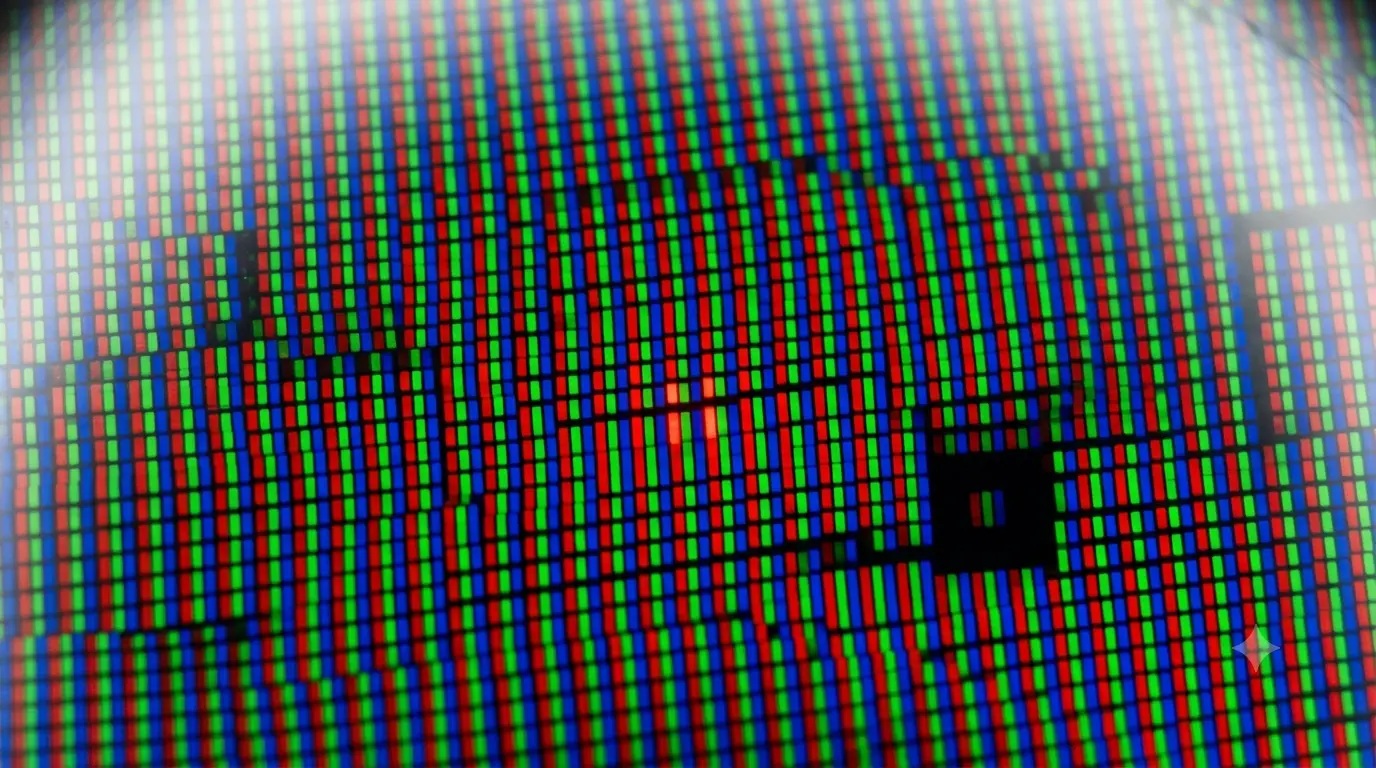
The real difference: stuck is lit, dead is dark
Every pixel on an LCD is made of three tiny subpixels — one red, one green, one blue — that mix to make every colour. The two faults come down to whether those subpixels are getting power and a signal:
- Stuck pixel: one or more subpixels are permanently on, so the dot shows a fixed colour — bright red, green, blue, cyan, magenta, yellow or white — no matter what the screen is displaying. It's still receiving power; it's just not changing.
- Dead pixel: the pixel gets no power or no signal at all, so it stays black on every image. It's completely unresponsive.
The quick rule of thumb: a coloured dot is usually stuck; a black dot is usually dead. That distinction matters, because stuck pixels are the ones you have a realistic chance of fixing.
How to tell which one you have
You can't judge a pixel against a busy desktop — you need to flood the screen with solid colours so the odd dot stands out. That's exactly what a pixel test does: it fills the whole display with pure white, then black, then red, green and blue in turn, and you watch how the suspect dot behaves on each.
- A dot that is black on every colour (including white) is dead.
- A dot that stays one colour while the background changes is stuck.
- A dot that is black on one colour but normal on others is a partial subpixel fault — a single dead subpixel — which behaves like a mix of the two.
Clean the screen first — a speck of dust or a smudge is the most common "dead pixel" that isn't one at all.
How to fix a stuck pixel
Because a stuck pixel is still powered, rapidly flashing it or gently nudging the liquid crystal back into motion can sometimes free it. None of these are guaranteed, but they're low-risk if you're gentle and worth trying before you give up:
- Run a pixel-exercising pattern. Flashing rapid colours over the stuck area can jolt the subpixel back to life. Leave a full-screen colour-cycling test running over the spot for 10–30 minutes.
- The pressure method. Power the screen off, put a soft, damp cloth over the stuck pixel, and apply light pressure with a fingertip or a blunt, soft object right on the dot — then turn the screen back on while releasing. Too much pressure creates more stuck pixels, so be gentle.
- The tap method. With a solid black image showing, tap very lightly on the exact spot with something soft and rounded. Again — gentle.
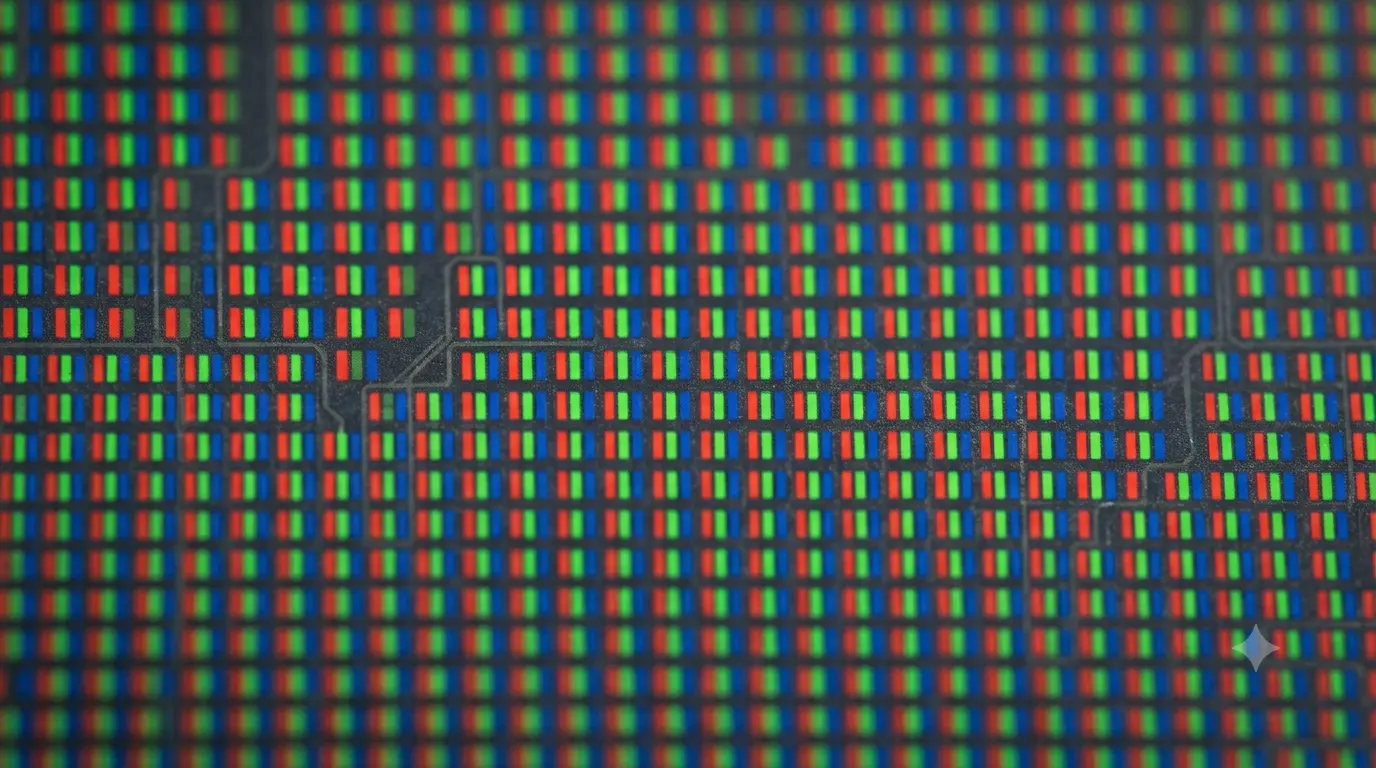
A genuinely dead pixel usually can't be revived — there's no signal reaching it to exercise, and pressure won't restore a broken connection. If the dot is black on white, don't expect these tricks to help; focus instead on whether it qualifies for a return.
When a bad pixel is a returnable defect
Here's the frustrating part: a few bad pixels are considered normal by the manufacturing standard (ISO 9241-307), and most makers publish a threshold you have to exceed before they'll accept a warranty claim. The exact numbers vary by brand and panel class, but as a rough guide, a single stuck or dead pixel often won'tmeet the bar on a mainstream monitor — while several, or any on a premium "zero bright dot" panel, will.
- Check your specific model's pixel policy — brands like Dell and others publish exact allowances by pixel type and count.
- Buying from a retailer? Their return window (14–30 days) is usually far more generous than the manufacturer's pixel policy — a single dead pixel is grounds to exchange or refund within it, no threshold to meet.
- Document it: photograph the dot on a solid background and note the date, in case you need to make the case.
So the practical move is simple: test the moment you unbox, while the retailer's return window is still open and you have the most leverage.
A few things that aren't dead pixels
Before you conclude the panel is faulty, rule out the lookalikes:
- Dust or a smudge on the surface — wipes away; a real fault is inside the glass and won't.
- Pressure marks / "mura" — faint blotches, not a sharp dot; that's a uniformity issue, not a pixel.
- A single dead subpixel — a dot that's slightly the wrong colour rather than fully black or fully lit; it's minor and often invisible at normal distance.
Whichever you have, a two-minute full-screen test settles it. Start there, decide whether to nurse a stuck pixel back to life or return the panel, and don't lose sleep over a single dot that only you will ever notice.