Colour Banding in Gradients: Why It Happens and How to Test Your Monitor for It
A sky that should fade smoothly from orange to blue instead shows visible stripes — distinct bands where there should be a seamless gradient. It's one of the most common monitor complaints, and also one of the most misdiagnosed, because banding can come from your panel, your operating system's settings, or the video you're watching, and each has a completely different fix. This guide teaches you to tell which one is yours before you blame — or fix — the wrong thing.
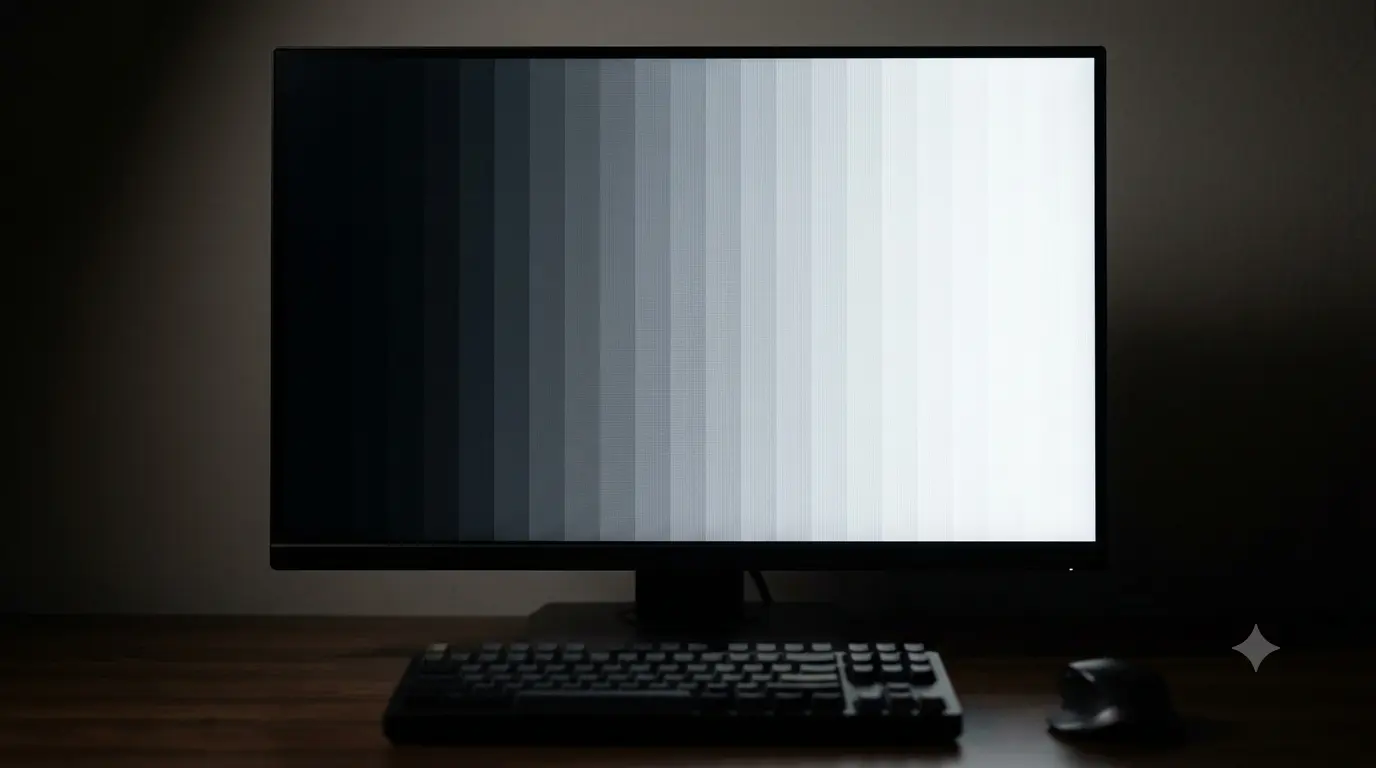
What banding actually is
A gradient is really a sequence of very slightly different shades laid side by side, close enough together that your eye reads them as one smooth transition. Banding happens when the steps between those shades are too big for your eye to blend — you see the individual bands instead of the fade. It's most visible in large, low-detail areas: skies, shadows, out-of-focus backgrounds, and dark scenes.
Is it your panel, or your content?
This is the fork in the road, and skipping it is why so much banding advice doesn't work — people chase a monitor setting when the problem is actually a compressed video file, or blame Netflix when their panel is genuinely 6-bit. There are two completely separate families of cause:
Panel-side causes
- A 6-bit or 6-bit + FRC panel. True 8-bit colour gives 256 levels per channel; a cheaper 6-bit panel only has 64, so gradients simply have fewer real steps to work with. Many budget "8-bit" monitors are actually 6-bit panels using FRC (Frame Rate Control) — rapid dithering between two shades to fake in-between levels — which helps a lot but isn't perfect, especially in static, dark gradients.
- A low colour-depth setting in your OS or GPU. If Windows or your GPU driver is outputting fewer bits per channel than your panel can actually use, you'll see banding your hardware shouldn't produce.
- An aggressive picture profile. Dynamic contrast, "vivid" modes and steep custom gamma curves can stretch a smooth gradient's tonal range until small differences become large, visible jumps.
Content-side causes (not your monitor's fault)
- Compressed streaming video. Netflix, YouTube and similar services use lossy compression that quantises colour more aggressively than the source, especially at lower quality tiers or on a slow connection. Skies and sunsets in streamed video are a classic case — the banding is baked into the file before it ever reaches your monitor.
- Heavily compressed images. A JPEG saved at low quality, or a graphic exported for the web with too few colours, can band on a perfect panel.
- 8-bit source material stretched by HDR tone-mapping — content mastered in standard 8-bit that gets aggressively remapped can reveal steps that weren't visible in its original form.
The way to separate the two: test with a full-screen gradient generated in your browser, not a photo or video. If that clean, uncompressed gradient still bands, it's your panel or your settings. If it looks smooth but your streamed video still bands, the video is the culprit.
Spotting FRC dithering shimmer
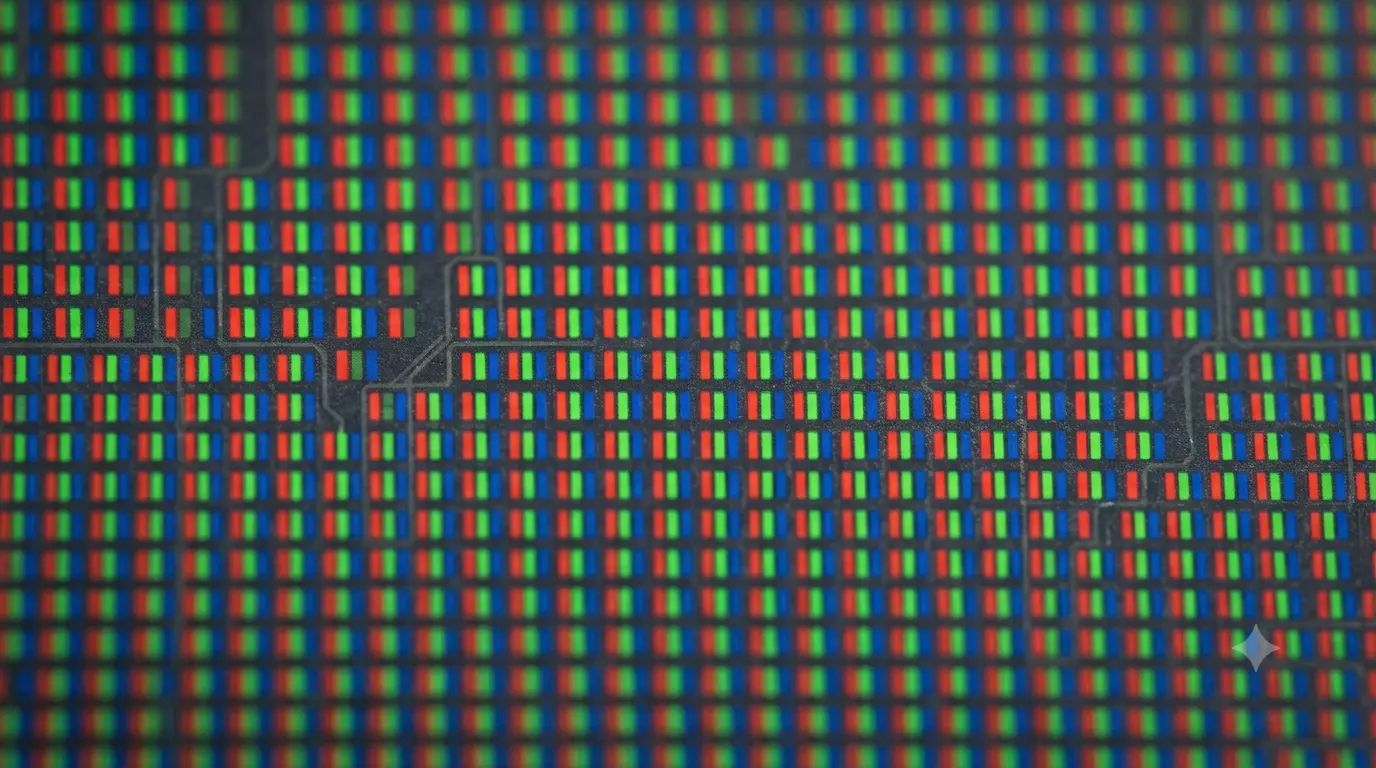
There's a second, subtler thing to check beyond hard stripes: dithering noise. If your panel uses FRC to fake extra colour levels, a still, mid-to-dark grey field can show a very faint shimmer or grain — the pixels are rapidly toggling between two shades and your eye is averaging them, which sometimes doesn't quite settle into a perfectly static image. Hold on a solid grey or dark-blue field for ten or fifteen seconds and watch for a subtle flicker or noise texture rather than a flat, dead-still colour. It's easiest to catch in your peripheral vision, which is more motion-sensitive than your direct gaze.
Confirm the bit depth with the deeper test
Once you've established the gradient test bands even on a clean, browser-generated ramp, the colour depth test goes a level deeper. It zooms into dark, near-black ramps — where too few levels break down first — and gives you a set of near-value pairs (two barely-different shades side by side) so you can find the finest step your panel and current settings can actually resolve.
- If you can tell apart even the smallest pairs, your panel and pipeline are genuinely resolving fine gradations — a true 8-bit or 10-bit path.
- If pairs collapse into one flat shade starting fairly early in the list, that's a real 6-bit limitation (with or without FRC softening it).
- The page also shows a live "your display" readout of
screen.colorDepth— treat it as a sanity check only. Browsers report 24-bit (8 bits per channel) in almost every case regardless of the panel, so a 24-bit reading on a genuine 10-bit monitor is normal, not a fault.
Fixing what's actually fixable
- Set your OS and GPU to their highest colour depth. In Windows, check your GPU control panel's display/colour settings and select the maximum bit depth your monitor and cable support — often labelled "8-bit" or "10-bit / 1.07 billion colours."
- Update your GPU driver. Older drivers occasionally default to a lower bit depth or the wrong colour format over a given connection type.
- Prefer DisplayPort over HDMI where you have the choice — it more reliably carries higher bit depths at high resolution/refresh combinations without falling back to chroma subsampling.
- Turn off dynamic contrast and vivid picture modes and use a neutral/custom profile — see our colour guide for the full walkthrough on picture modes.
- For streamed video specifically, raise the streaming quality tier if your connection allows it, or watch from a higher-bitrate local file — this fixes content-side banding that no monitor setting will touch.
The honest hardware answer
If your panel tests as genuinely 6-bit on the colour depth test's near-value pairs, no OS setting, driver update or cable will make it an 8-bit panel — that's a fixed hardware limit, and FRC will only get it partway there. That's not necessarily a defect; plenty of budget monitors are honestly specified as 6-bit or "8-bit (6-bit + FRC)," and some visible banding in the darkest, most demanding gradients is simply the trade-off of that price point. It's worth knowing before your next purchase, and worth checking the spec sheet rather than assuming "8-bit" always means a true 8-bit panel.
It is worth a return or a support conversation if your panel is specified and sold as true 8-bit or 10-bit but consistently fails the near-value pairs at a level worse than FRC dithering would explain, or if banding is severe even at your OS/GPU set to maximum colour depth with a neutral picture mode — that combination points to a genuine defect or a mis-specified panel rather than an expected limitation.